
Overview
You can add a short, personalised warm-up of 1 to 5 revision questions to a custom or adaptive task. Each student gets their own set, drawn from their recent work, so they revisit what they need while they move on to something new.
- Where to find it: the Add revision questions setting when you create a custom or adaptive task.
- Who gets what: each student gets their own set, picked for them when they open the task.
- Reporting: revision results appear in their own Revision column and tab, separate from the task's main results.
- Naming: in US accounts the setting is called Add review questions. The screenshots in this article are from a US account.
- A start screen shows how many revision questions and task questions they have.
- Revision questions come first, with their own progress bar. Students can switch between the revision and task questions at any time.
- If they skip ahead, they're prompted to go back and finish their revision questions.
- If no suitable questions are found, for example for a new student with no recent work, they go straight to the task questions.
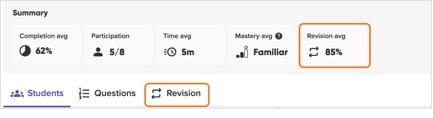
- The summary shows a Revision avg, and a Revision tab sits beside Students and Questions.
- The Students tab has a Revision column with each student's result.
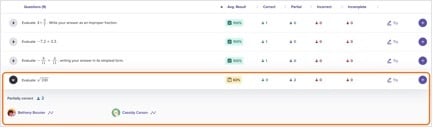
- Click the arrow beside a question to see which students fell into each group, then open a student's work from there.
- Click Try to attempt the question yourself, or + to add it to your question cart for a future task.
This is different from Assign Class Revision, which creates a separate task from the questions your whole class found hardest, and from the student-led Revision practice bank students can open themselves.
Add revision questions to a custom task
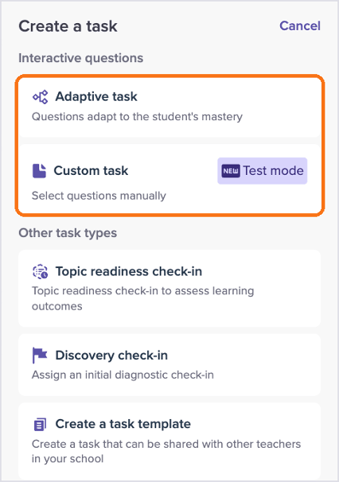
- Click Assign task in the left menu (or Assign on a class card), then choose Custom task.
- Select your questions as usual, then click Design your task.
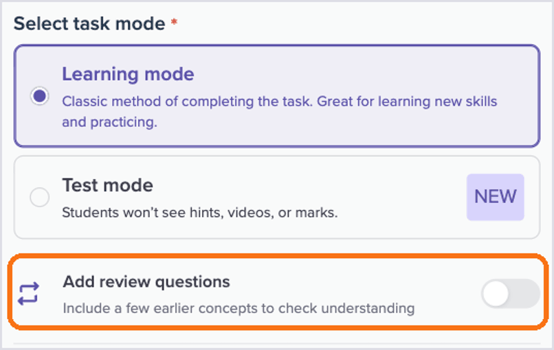
- Under Select task mode, keep Learning mode. Revision questions aren't available in Test mode.
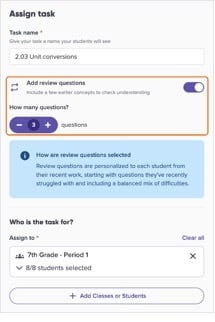
- Turn on Add revision questions (called Add review questions in US accounts).
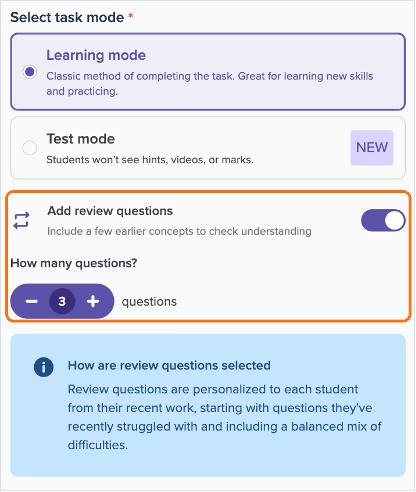
- Under How many questions?, use − and + to choose 1 to 5 questions per student. The default is 3.
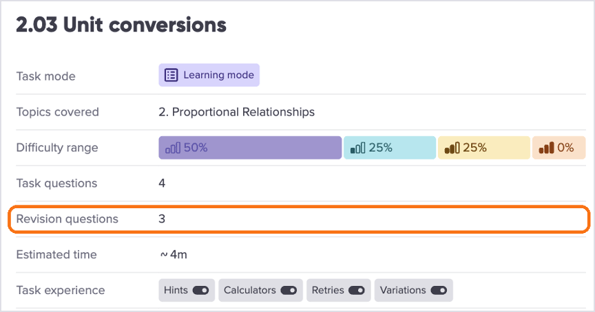
- Click Preview. The summary lists Revision questions alongside your task questions so you can check them before assigning.
- Under Assign to, add your classes or students, set the start and due dates, then click Assign.
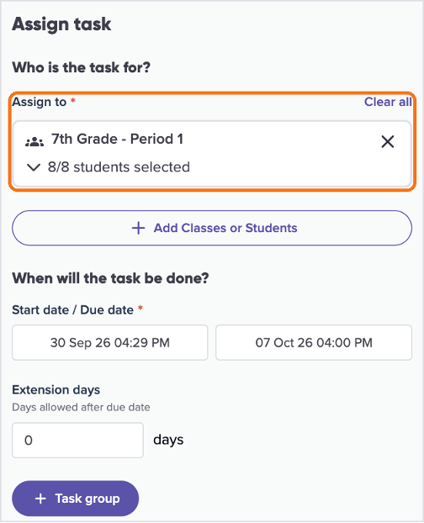
Tip: the estimated time doesn't include revision questions, so allow a few extra minutes for them.
Add revision questions to an adaptive task
The setting works the same way for adaptive tasks. After you choose your subtopic and click Continue, you'll find Add revision questions on the Assign task step, just under the task name. Turn it on, choose 1 to 5 questions, pick who the task is for, then click Assign.
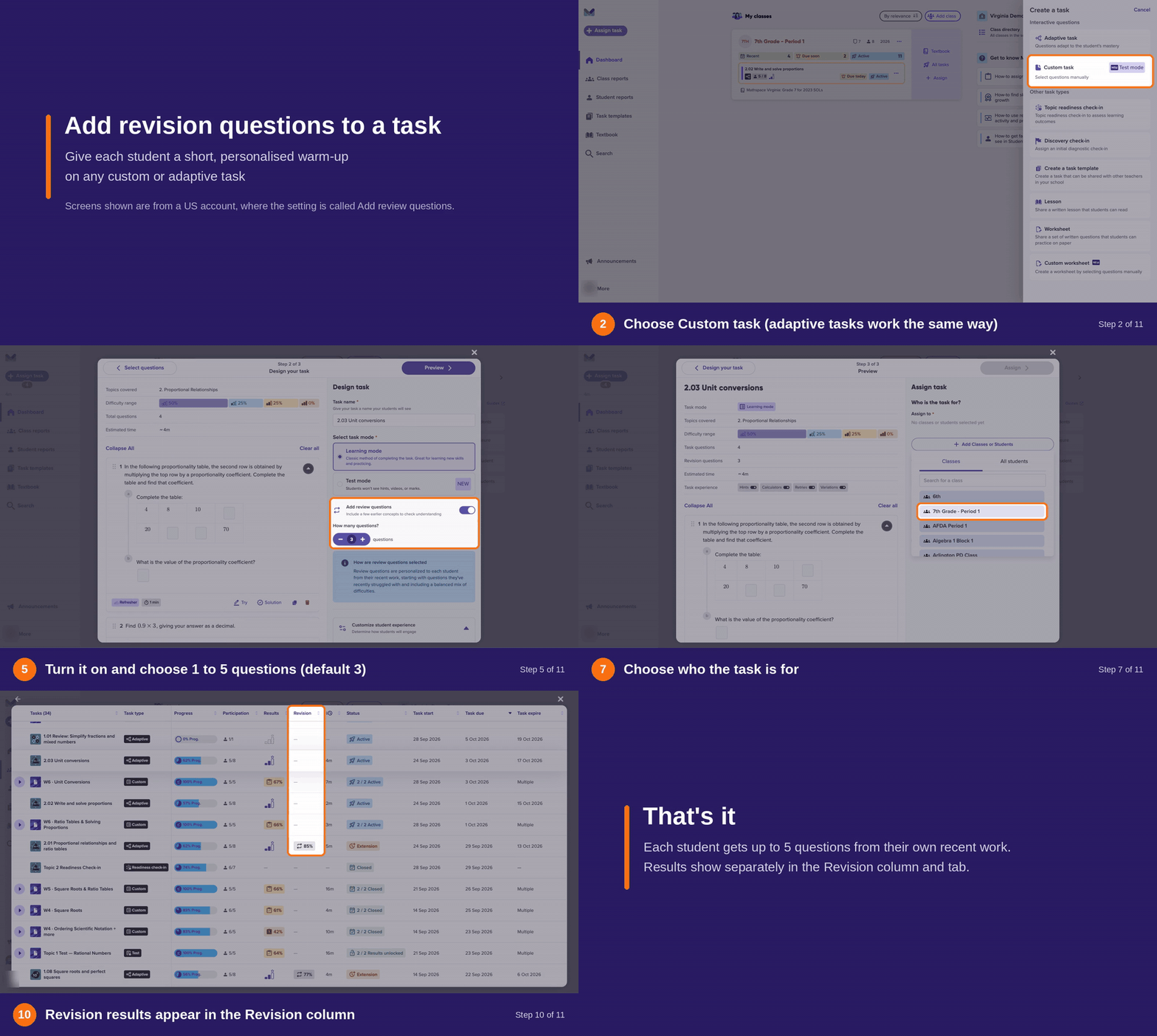
Watch it in 40 seconds
This walkthrough assigns a custom task with 3 revision questions, then shows where the results appear.
How revision questions are picked
Mathspace picks each student's revision questions when they open the task, so the set reflects their latest work. It looks back over roughly the last six weeks and fills the number you chose in this order:
- Questions they recently got wrong or skipped, most recent first.
- Questions from past tasks they were assigned but didn't get to. Questions their classmates found hardest come first.
- Questions they recently answered correctly, if more are still needed, to keep those skills fresh.
Within that order, Mathspace aims for a balanced mix of difficulties and shows the questions from easier to harder. A question that's already in the task is never used as a revision question.
Because the questions come from each student's own history, students get different sets, and the questions aren't limited to the task's topic. A student with little recent work may get fewer questions than you chose, or none.
What students see
- A start screen shows how many revision questions and task questions they have.
- Revision questions come first, with their own progress bar. Students can switch between the revision and task questions at any time.
- If they skip ahead, they're prompted to go back and finish their revision questions.
- If no suitable questions are found, for example for a new student with no recent work, they go straight to the task questions.
See how students went
Revision results are kept separate from the task's main results, so they don't change a student's score on the task.
Results appear once students start the task. Until then, the task report has no Revision tab.
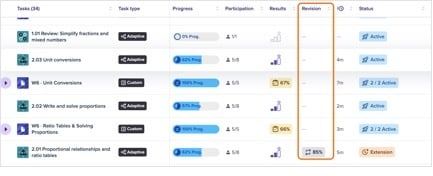
In your class's Tasks list, the Revision column shows the class average for each task with revision questions.
In the task report:
- The summary shows a Revision avg, and a Revision tab sits beside Students and Questions.
- The Students tab has a Revision column with each student's result.
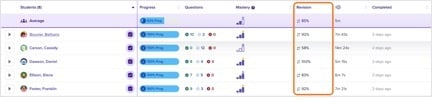
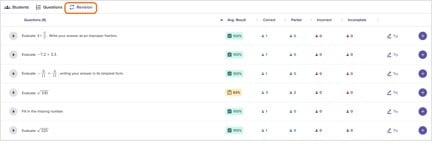
On the Revision tab, every revision question your students were given is listed with its average result and how many students got it correct, partly correct, incorrect or left it incomplete.
- Click the arrow beside a question to see which students fell into each group, then open a student's work from there.
- Click Try to attempt the question yourself, or + to add it to your question cart for a future task.
FAQs
Can I add revision questions to a task I've already assigned? Not yet. Turn on the setting when you create the task. Re-assigning a task doesn't copy the setting across, so turn it on again before you click Assign.
Can I choose which revision questions students get? No. They're picked for each student automatically. To give everyone the same questions, add them to the task itself, or use Assign Class Revision.
Why did a student get fewer revision questions than I chose, or none? They didn't have enough recent work to draw from. This is most common for new students and early in the school year.
Are revision questions exact copies of questions students got wrong? They're fresh attempts at those earlier questions. Students start them from scratch, often with different numbers.
Can I add revision questions to a test? No. The setting is only available in Learning mode.
How is this different from Assign revision? The Assign revision option in a task report's Task options menu, and Assign Class Revision in your class view, create a separate task from the questions your class struggled with most. Everyone gets the same set. Revision questions sit inside a new task and are different for each student.
Can students revise on their own? Yes. Every student also has a personal revision bank they can practise from at any time. See How revision works in Mathspace.