
Mathspace's assessment/test mode lets you run assessments in Mathspace where all scaffolding is removed — no hints, no step-by-step feedback, no Milo. Students work in a free-form environment and show their full reasoning, the same way they would on paper. After they submit, the AI marks their work based on method, not just final answers.
Creating a test
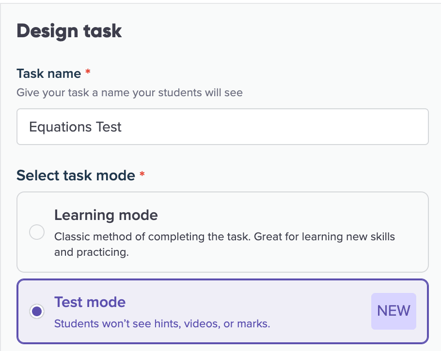
- Create a new task in Mathspace.
- When picking task mode, select Test Mode.
- Select your questions. You can include up to 60 questions per test.
- Review the difficulty breakdown and estimated time shown at the top of the question selection screen.
- Click Preview to proceed to the assignment step.
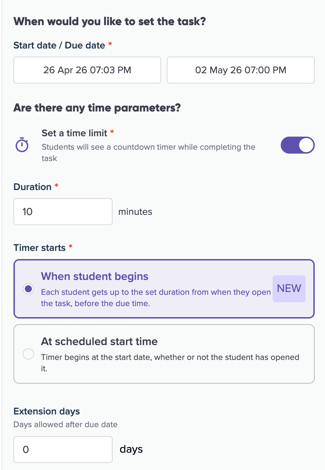
- Once you've picked the class to assign it to, you can then decide on whether to set a time limit by clicking on the switch.
- If you set a time limit, you must first pick the duration for the test.
- The timer will start either "when student begins" the test between the start and due dates, or "at scheduled start time" when all students must start the test at the same time.
When Test Mode is on, students will not have access to hints, step-by-step feedback, or Milo during the test. They work in a free-form input environment where they enter their reasoning as equations and working, just as they would on paper.
How AI marking works
Once a student submits their test, the AI reads their working and allocates marks based on method.
The AI evaluates each step of a student's reasoning — not just whether the final answer matches the expected result.
Follow-through marks
Follow-through marking applies across parts of a multi-part question. If a student gets part (a) wrong but uses that incorrect answer correctly in parts (b) and (c), the AI awards marks for the correct method in those subsequent parts.
For example: if part (a) asks a student to find the value of x, and they arrive at x = 5 instead of x = 3, but then correctly substitute their answer into parts (b) and (c) and apply the right method throughout, the AI gives follow-through marks for parts (b) and (c). This is the same approach you would use when marking by hand.
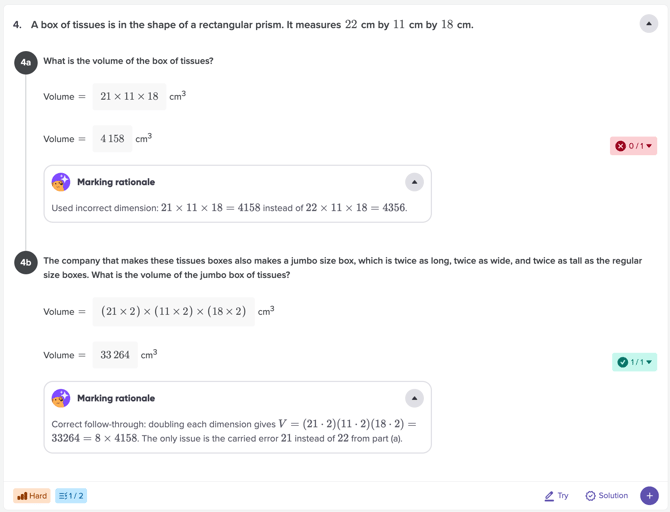
Marking rationale
Every question that requires working out receives a marking rationale that is also visible to students.
Students can use this rationale to identify the specific point where their reasoning broke down and understand exactly why they lost marks.
Reviewing and overriding AI marks
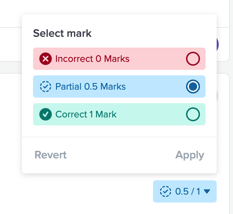
You can review and override any marking decision.
- Open the completed test from your class report.
- Open the Scorecards view.
- To override a mark, click on the score to update it directly and apply.
What students see
When a student opens a test mode task, the experience is different from a regular Mathspace task. Students can navigate between questions during the test and revisit earlier answers before submitting.
Reviewing results with Scorecards
After the AI has marked the test, use Scorecards to review results. Scorecards have two views:
Scorecards view
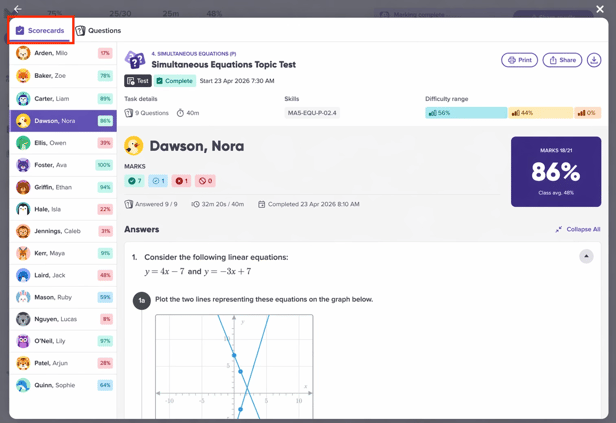
- Open the completed test from your class report.
- The Scorecards view loads with the student view by default.
- Scroll through each student's responses. You can:
- View their answers and the AI's marking for each question
- Update marks directly inline
- Flick between students without leaving the view
Question view
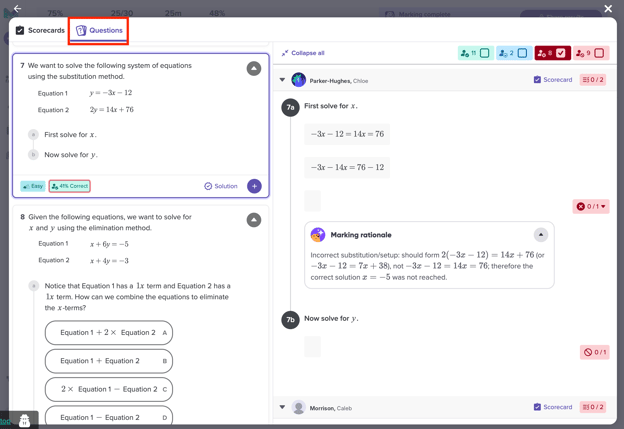
- From the Scorecards view, switch to the Questions tab.
- You'll see all questions with the class-level correct/incorrect count.
- Click on any question to expand it.
- Use the correct/incorrect chips to filter — for example, click the incorrect count to see only students who got that question wrong.
- Expand individual student responses to see their working and the AI's marking rationale.
This view is useful for spotting patterns. If a question shows 45% correct, you can quickly see whether students are making the same type of error.
Integrity Monitoring
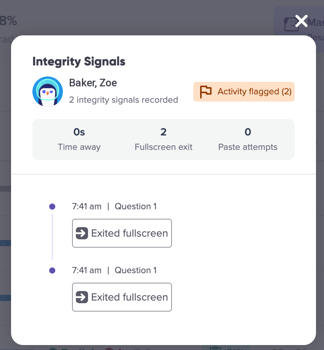
When Test Mode is on, Mathspace can flag certain student actions during the test. These include:
- Exiting full screen mode
- Navigating away from the test page or switching browser tabs
- Pasting content into the answer field
These flags appear as an activity log alongside the student's test results. They don't automatically affect the student's marks — they give you additional context when reviewing results so you can make your own judgement.
To view the integrity data:
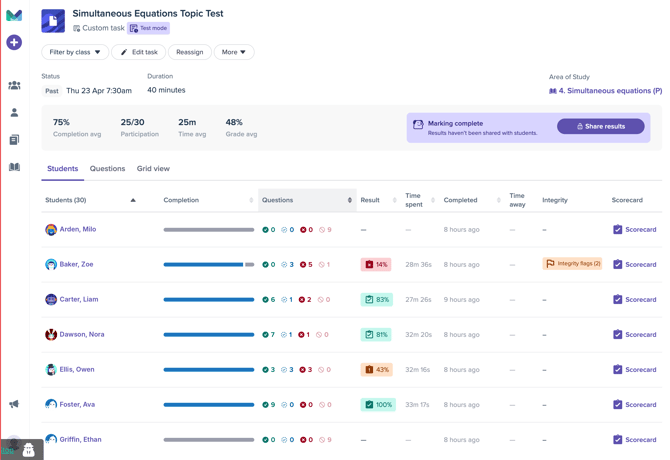
- Open the task from your class view.
- Go to the Students tab.
- Look for the integrity indicator next to each student's name.
- Click into a student to see the full activity log.
Sharing Results with Students
In test mode, students cannot access their scorecard until the teacher releases the results. This helps prevent potential cheating, such as students sharing questions with others who have not yet started the test.
Sharing results can be done by clicking the “Share results” button once the task has expired.
Things to note
- Test Mode supports up to 60 questions per test.
- All scaffolding (hints, step-by-step feedback, Milo) is disabled during a Test Mode task.
- Test Mode results appear in your Mathspace reports alongside your students' regular learning data.
- You can override marks for questions at any time.
- Marks updated in Scorecards save immediately.
- The initial load of Scorecards may take a moment for large classes. Once loaded, navigation is fast.
- Integrity Monitoring flags are informational only — they don't automatically affect student marks.
- Results can only be shared once the task has expired.
- By clicking 'Next question,' students can skip ahead and return to incomplete questions during review. Their answers are only final once the task is submitted or the test concludes.