
Fix mode extends Mathspace’s question retries so they work after a student has completed a task. Students can go back and correct their mistakes on a completed task before the expiry date, and their score updates in real time as they fix each error. Fix mode is available from the moment a student completes a task until the task’s due date.
How fix mode relates to question retries
During a task, students can already retry questions they get wrong — this is the existing question retries feature. Fix mode extends this same experience beyond completion. Once a student completes a task, they can return to any questions they got wrong and retry them until the task expiry date elapses, with their score updating as they go.
The retry experience itself is the same one students are already familiar with. The difference is when it’s available: retries during a task happen in the moment, while fix mode lets students come back after they’ve finished.
What students see
- After submitting the final question in a task, the student lands on the completion screen.
- The screen shows their score and the number of questions they answered incorrectly (e.g. “5 mistakes”).
- They can choose Fix mistakes to begin correcting errors.
How students fix their mistakes
- Mathspace presents each incorrect question for the student to retry.
- As they answer each question correctly, their score updates on the fly (e.g. 59% → 72%).
- They can stop at any time — they don’t need to fix everything in one sitting.
- To return later, they go to their Assigned tab and click into the task. The completion screen will show the option to continue fixing remaining errors.
Fix mode stays available until the task’s expiry date. After the expiry date passes, the student’s score at that point becomes final.
What teachers see
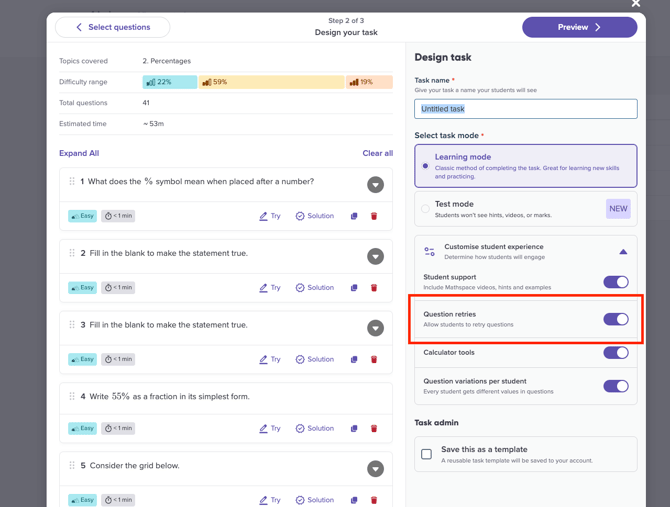
Fix mode doesn’t require any setup from the teacher. It’s available automatically on all tasks that have question retries turned on.
As students fix their mistakes, their updated scores are reflected in your class report. You’ll see their most current score — not just their initial submission.
When to use fix mode
Setting minimum performance targets. If you set a benchmark like “everyone should reach at least 70%,” students can use fix mode to work toward that target at their own pace before the due date.
Formative homework tasks. Rather than collecting a single score when students submit, the task stays active. Students who go back and engage with their errors are doing the kind of practice that builds understanding.
Reducing pressure on timed tasks. Students who rush through a task and make avoidable errors have a path to address them without needing a new task assigned.
Things to note
- Once the expiry date passes, students can no longer fix mistakes.
- Students earn updated points and coins as they correct errors.
- The score shown in your class report reflects the student’s best result after any fixes, not their initial submission score.
- Fix mode works on custom task types.
- There is no setup or configuration needed — fix mode is on by default if retries are on.