The teacher dashboard shows one tile for each of your classes. Almost everything you do for a class starts from its tile and takes one click: checking reports, opening the textbook and assigning tasks.
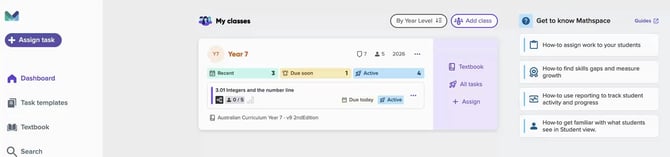
The teacher dashboard: a tile for every class, with guides on the right.
The class tile at a glance
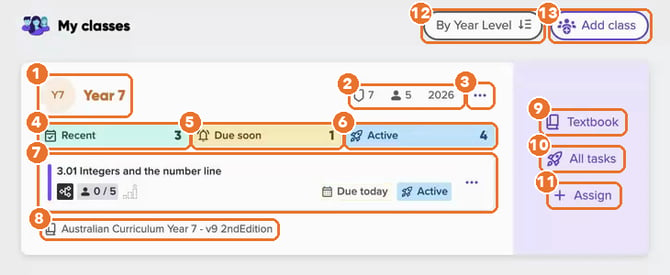
Everything for a class is on its tile. Numbers match the table below.
|
# |
Part of the tile |
What it shows |
What selecting it does |
|---|---|---|---|
|
1 |
Class name |
The class's name and initials |
Opens the class's Activity view |
|
2 |
Class details |
Year level, number of students and school year |
No action |
|
3 |
More (•••) |
Menu |
View join code, Class settings, Archive class |
|
4 |
Recent |
Tasks with a due date in the past 7 days, including tasks in extension or already expired |
Opens the class's tasks, filtered to Recent |
|
5 |
Due soon |
Tasks due in the next 48 hours, including tasks that haven't started |
Opens the class's tasks, filtered to Due soon |
|
6 |
Active |
Tasks that have started and haven't expired, including tasks in extension |
Opens the class's tasks, filtered to Active |
|
7 |
Featured task |
The task most likely to need your attention, usually the one just marked or due next, with participation, dates and status |
Opens that task's report |
|
8 |
Class textbook |
The class's focus textbook |
No action |
|
9 |
Textbook |
Link |
Opens the class's focus textbook |
|
10 |
All tasks |
Link |
Opens every task for the class |
|
11 |
Assign |
Link |
Starts a new task with the class and textbook already selected |
|
12 |
Sort |
By Year Level or Relevance |
Changes the order of your class tiles |
|
13 |
Add class |
Button |
Opens the Add a class pop-up |
When a class needs something, a banner on the tile tells you. A new class shows Add students. A class with no active tasks shows Assign task.
Add a class
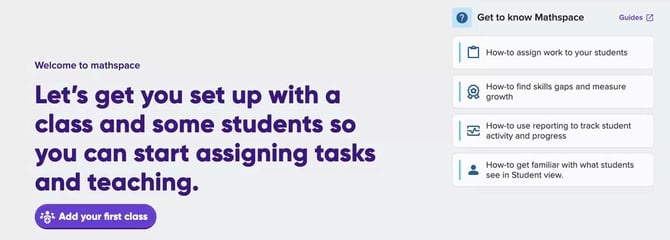
No classes yet? Select Add your first class.
- On the dashboard, select Add your first class, or Add class if you already have classes.
- Enter a class name.
- Choose a Focus textbook. Students see this textbook by default, and the tile uses it for the Textbook link and when you assign tasks.
- Choose a Class course. This sets which skills appear in students' skills map and check-ins.
- Select Create class. The new class appears as a tile on your dashboard.
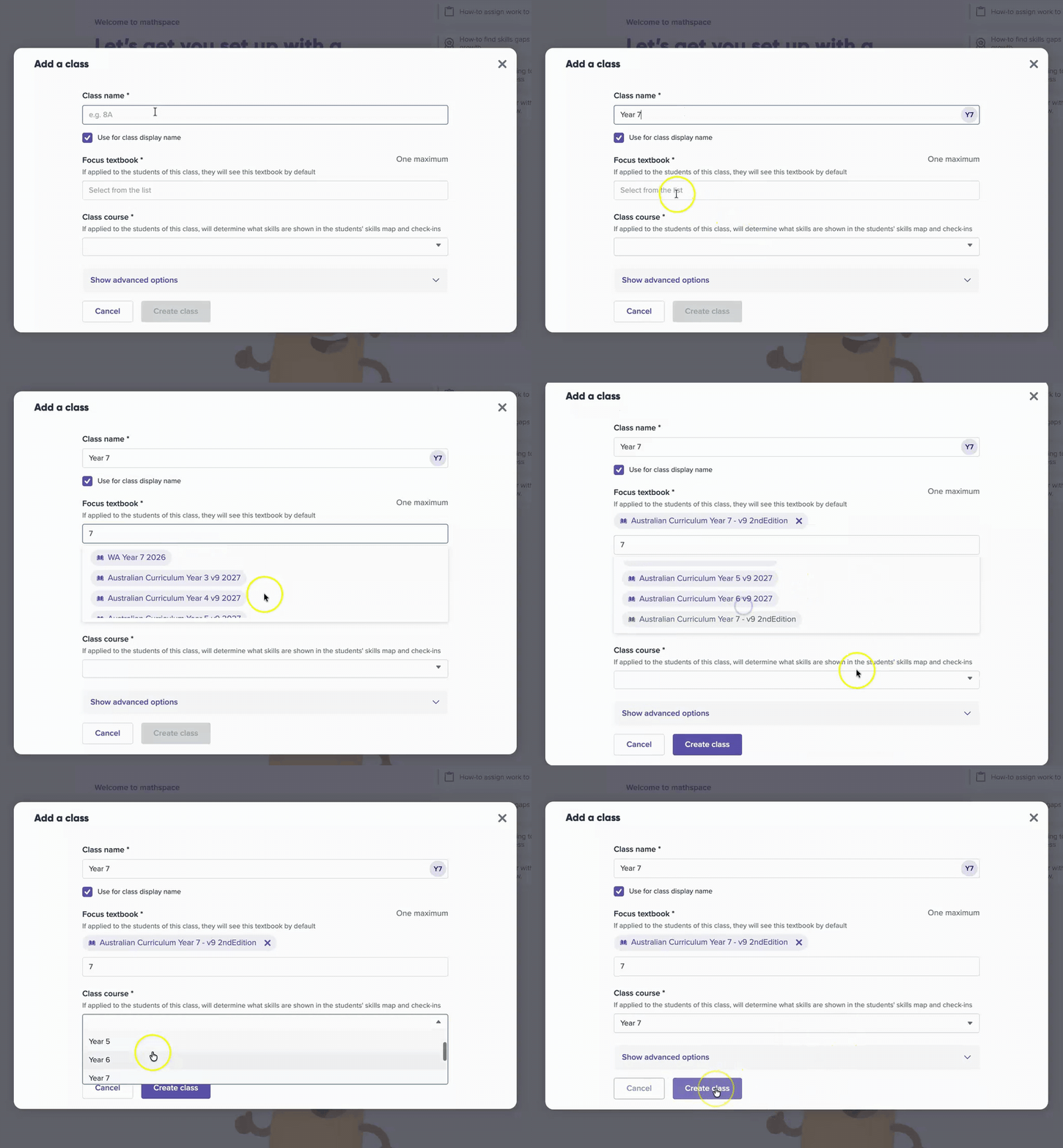
Add a class without leaving your dashboard.
Add students
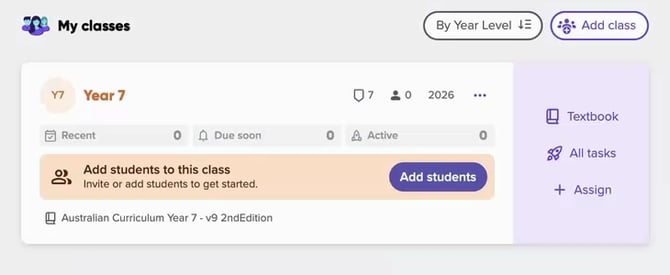
A new class tile prompts you to add students.
- On the class tile, select Add students.
- Select Add student, then choose Create a new student, Add existing students or Import from CSV.
- Leave Apply the Class Textbook Focus to these students ticked so they see the class's textbook.
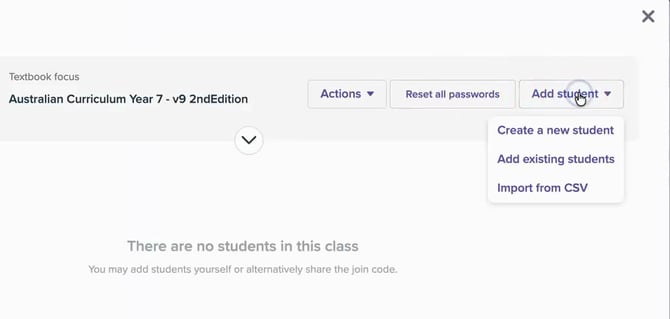
Create new students, add existing ones, or import a CSV.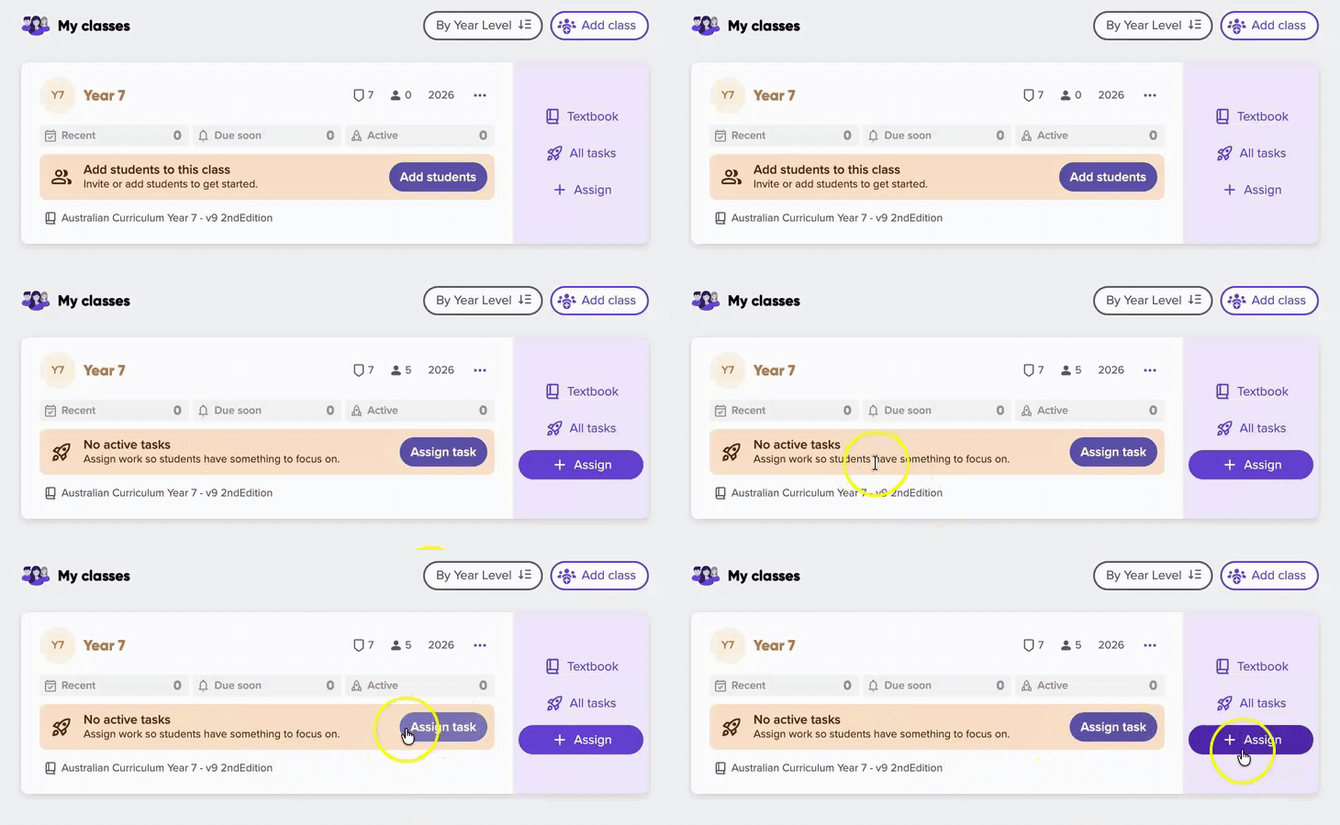
Once students are in, the tile prompts you to assign a task.
To let students join themselves, select ••• on the tile, then View join code, and share the code.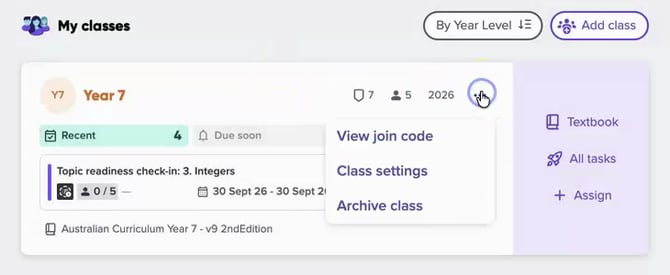
Assign a task from a class tile
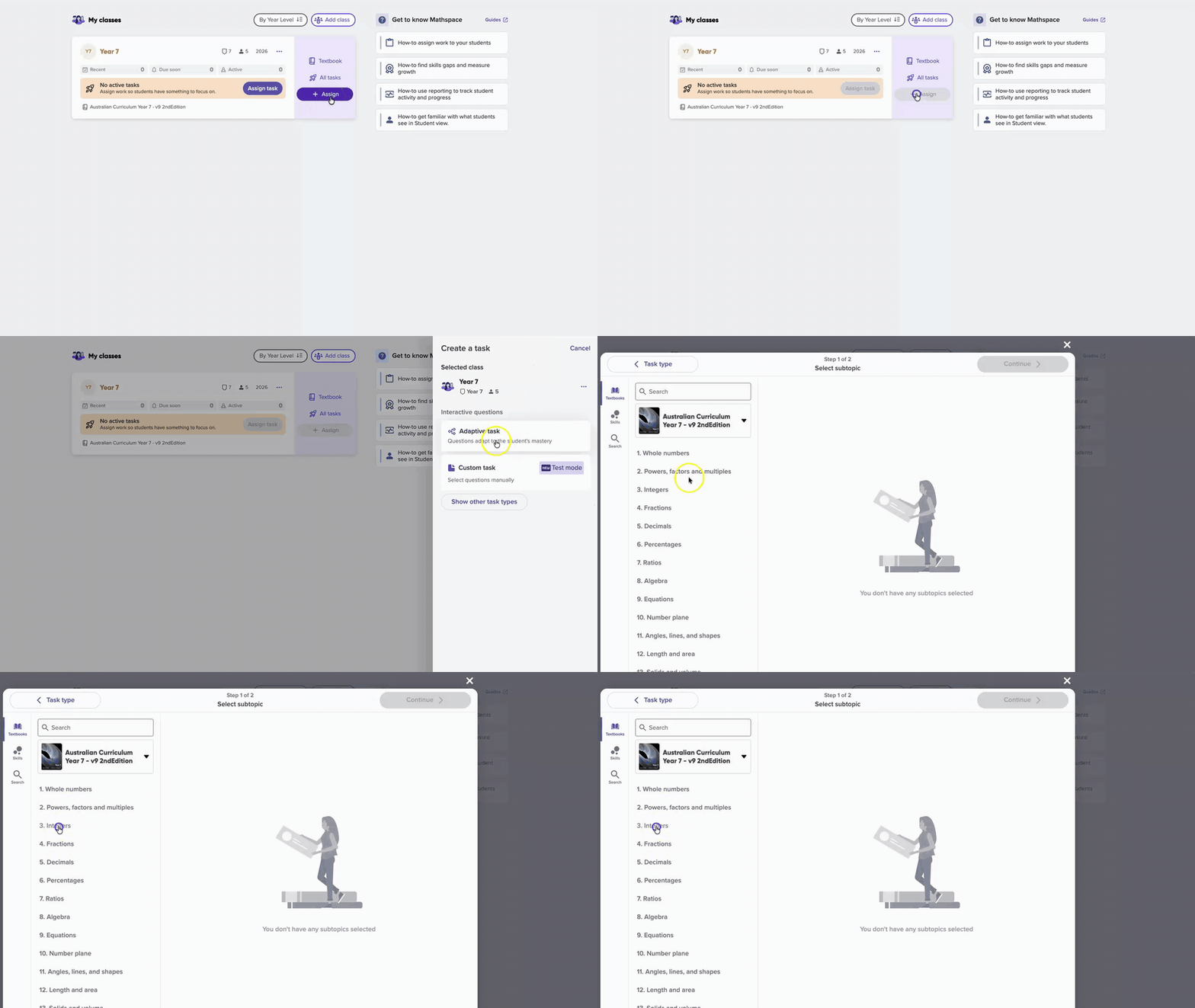
The class and its textbook are already filled in when you assign from a tile.
- Select Assign on the class tile. The Create a task panel opens with your class already selected.
- Choose Adaptive task or Custom task, or select Show other task types.
- Choose your subtopics. The class's textbook is already open, so there's no need to pick it from a list.
- Select Continue. Your class is already in Assign to.
- Check the task name and set the start and due dates.
- Select Assign.
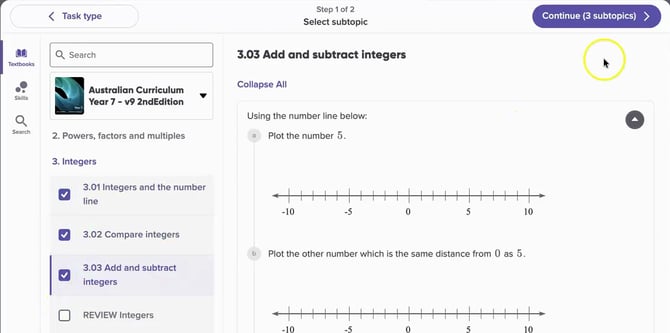
The task opens at your class's textbook. Tick one or more subtopics.
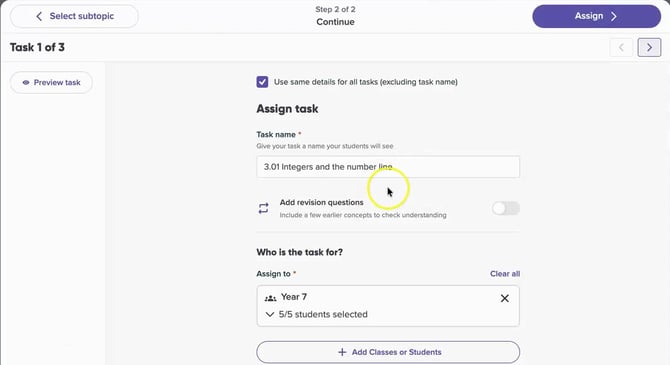
Your class is already in Assign to. Three subtopics means three tasks.
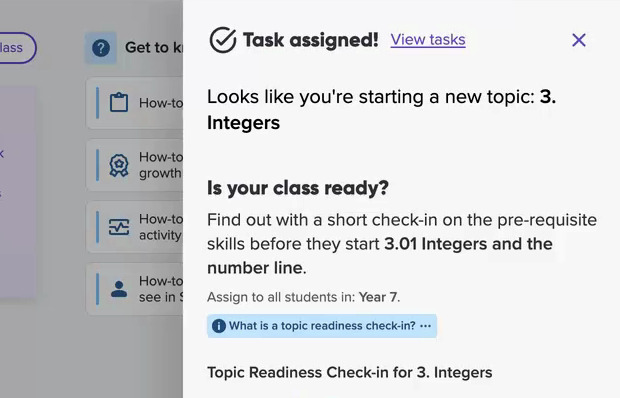
Assign the first subtopic of a new topic and you'll be offered a topic readiness check-in.
Open a report in one click
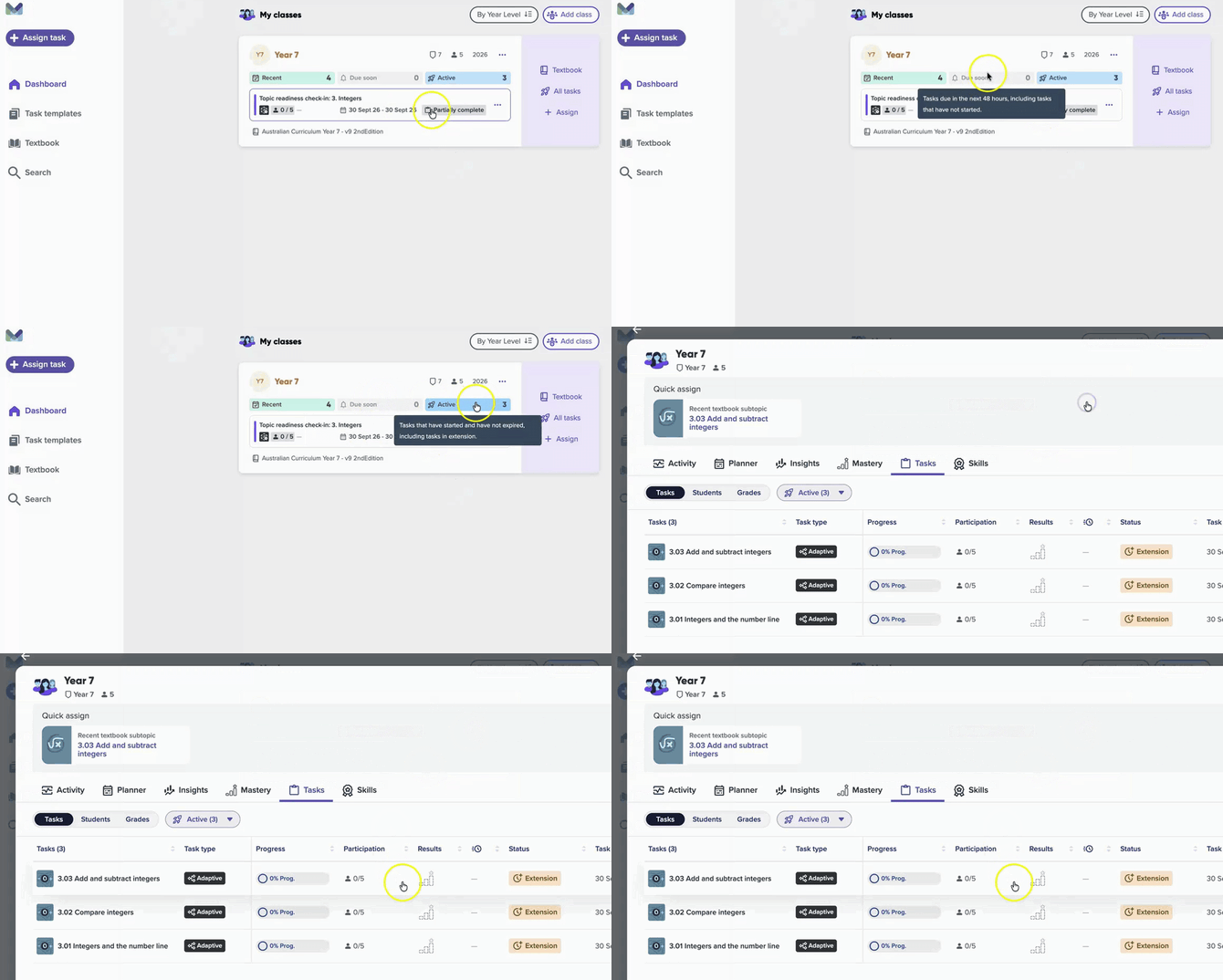
Select a count to open just those tasks.
- To see what's just been marked, select Recent on the tile.
- To see what's coming up, select Due soon.
- To see everything students can still work on, select Active.
- To open one task's report, select the featured task on the tile.
- To see recent class activity, select the class name.
Reports open in a panel over the dashboard. Tabs across the top let you switch to Activity, Planner, Insights, Mastery, Tasks or Skills. Use the filter next to the Tasks tab to switch between Recent, Due soon and Active.
Close the panel to return to the dashboard. To work on the full class page instead, select View full page.
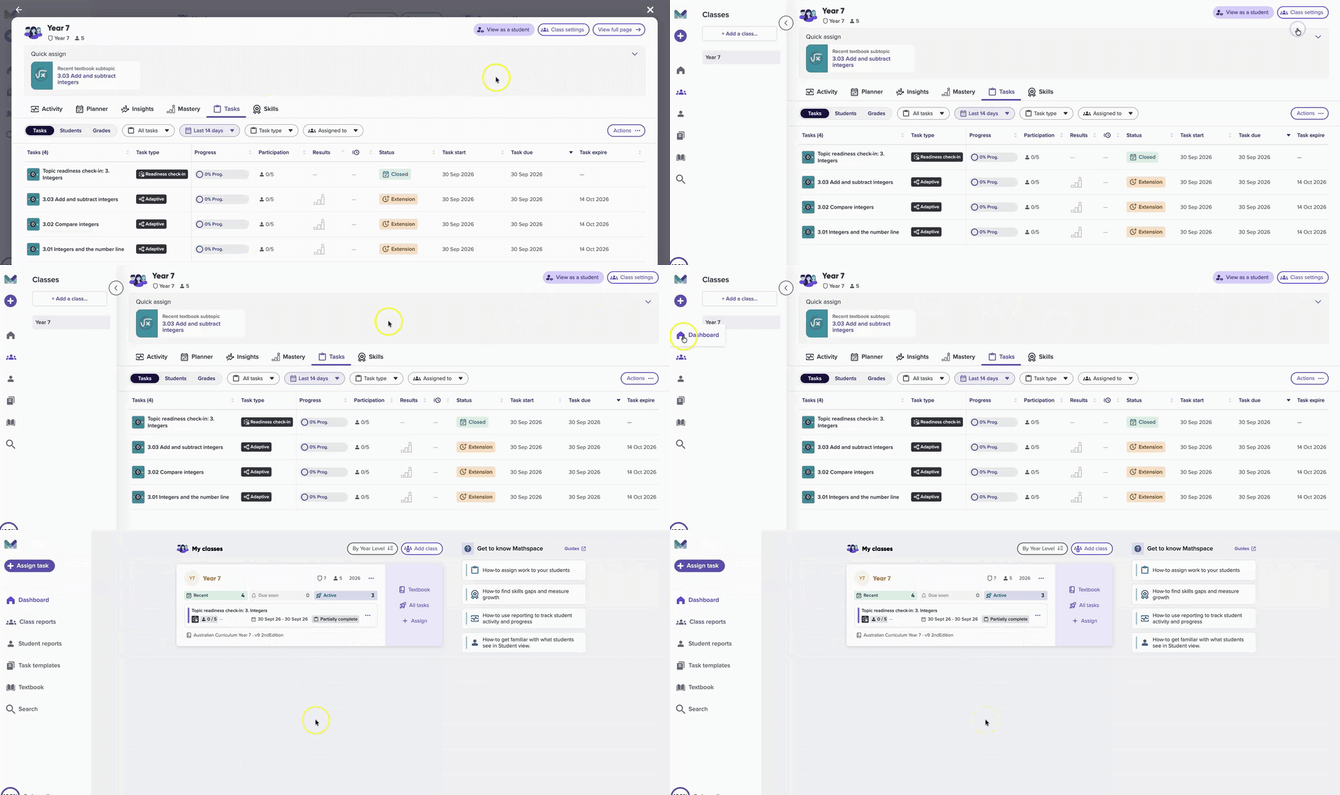
Want more room? Select View full page. The Dashboard icon brings you back.
Open the class's textbook
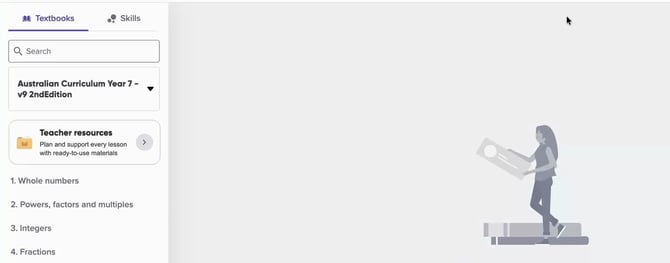
Select Textbook on the class tile. The class's focus textbook opens straight away, along with its Teacher resources.
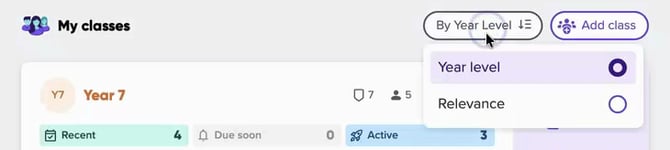
Sort your classes
Select the sort button above your tiles to choose an order:
- By Year Level: the default.
- Relevance: classes with tasks just marked or due soon move to the top, with the nearest dates first.
Find a guide
The Get to know Mathspace panel on the right of the dashboard links to guides on assigning work, finding skills gaps, using reports and seeing what students see. Select Guides to open the full help centre.