
Task Groups let you assign different start and due dates to different groups of students within the same task. You create one task, add groups, assign students to each group, and set separate timelines.
Creating Task Groups
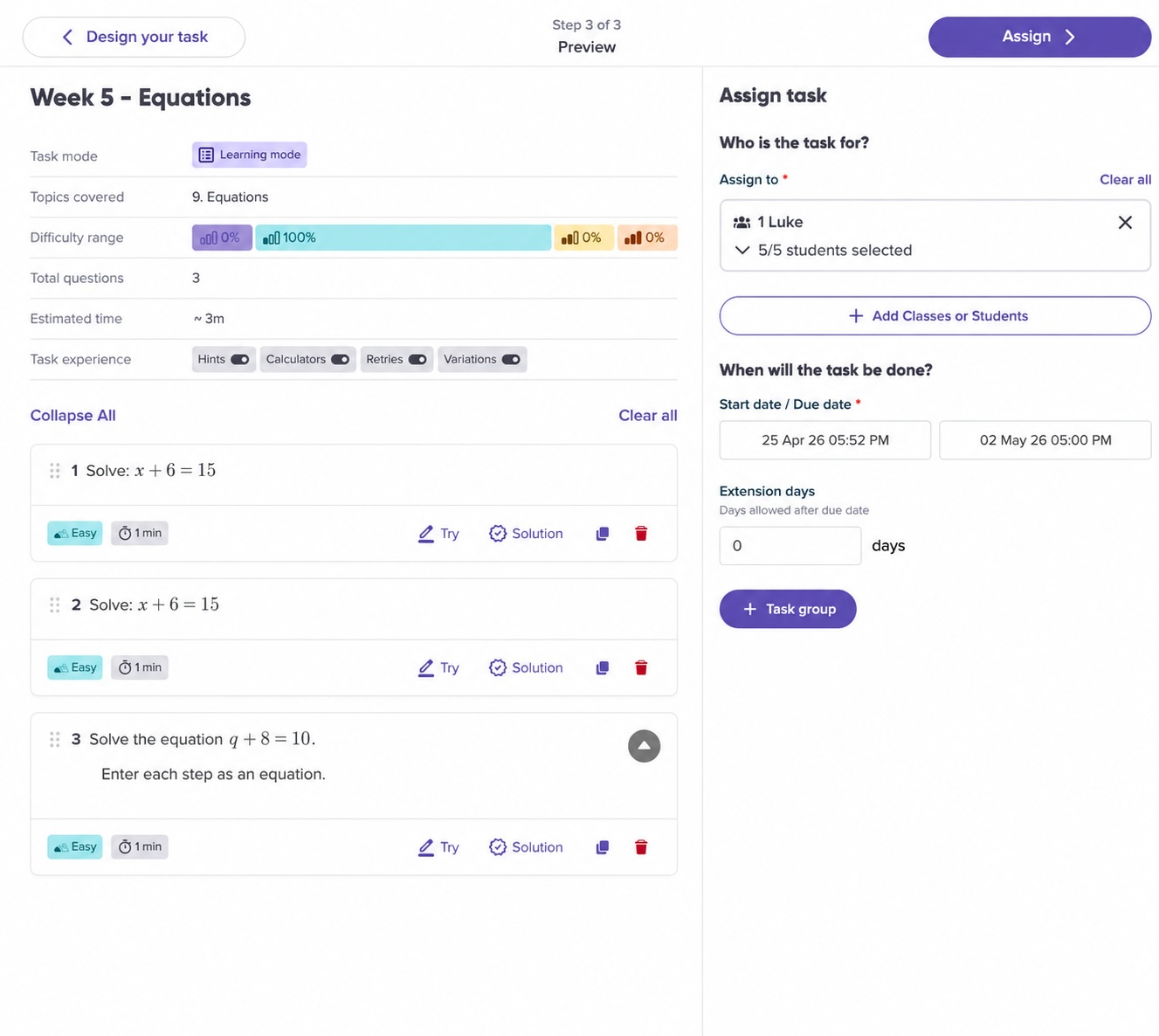
- Create a new task or open an existing task for editing.
- At the final Preview Task step, you can now add a Task Group by clicking on the "+ Task Group" button.
- Set the start date and due date for that group, along with classes and students.
- To add more groups, click + Task Group and repeat.
Each group can have a completely different start and due date. All groups share the same set of questions.
Assigning students to groups
- When building a group, select students from the dropdown.
- Students already assigned to another group appear greyed out.
- Click on a greyed-out student to move them from their current group.
- Every student in the class must be assigned to a group.
Moving students between groups after a task is live
You can update group assignments after a task has been assigned using the edit task slide-out.
- Open the task from your dashboard or class report.
- Click Edit task.
- Reassign students to different groups or adjust dates as needed.
- Save your changes. Changes apply immediately.
Things to note
- A student can only belong to one Task Group per task.
- All groups within a task share the same set of questions. Only the timelines differ.
- If you don’t create any Task Groups, the task behaves as before — one start and due date for the entire class.
- Task Groups are available on all task types, including Test Mode tasks.