
The Task Report will display the results of any tasks that you have set for your classes or students. You can access the Task Report from Class Tasks or Student Tasks.

At the top, you will find some general information about the task, and additional options. Filter by class if the task was assigned to more than one class using the "Filter by class" dropdown.
Note that if your task has expired, you can reopen it by clicking on "Edit task". You can also try the task from this page and reassign it to your class or students.
In the "Task options" menu, you can print a copy of the task, and save the task for future use by clicking on "Create Template," view the share link, export the report, and delete the task.

Using the Students tab, you can view each student's performance on the task. The Revision column shows each student's result for their revision questions.
The 'Completion' bar represents the proportion of the task that has been completed (regardless of the scores).
Note that for a Custom Task, the completion bars will be blue and the result will be a percentage result. For an Adaptive Task, the completion bars will be purple and the result will be a mastery level.
New Adaptive Task Report:
-
The progress bar will show how far the students are in getting that number of required questions correct
-
The mastery level will still be reported as a separate metric.
The progress bar will show how far the students are in getting that number of required questions correct
The mastery level will still be reported as a separate metric.
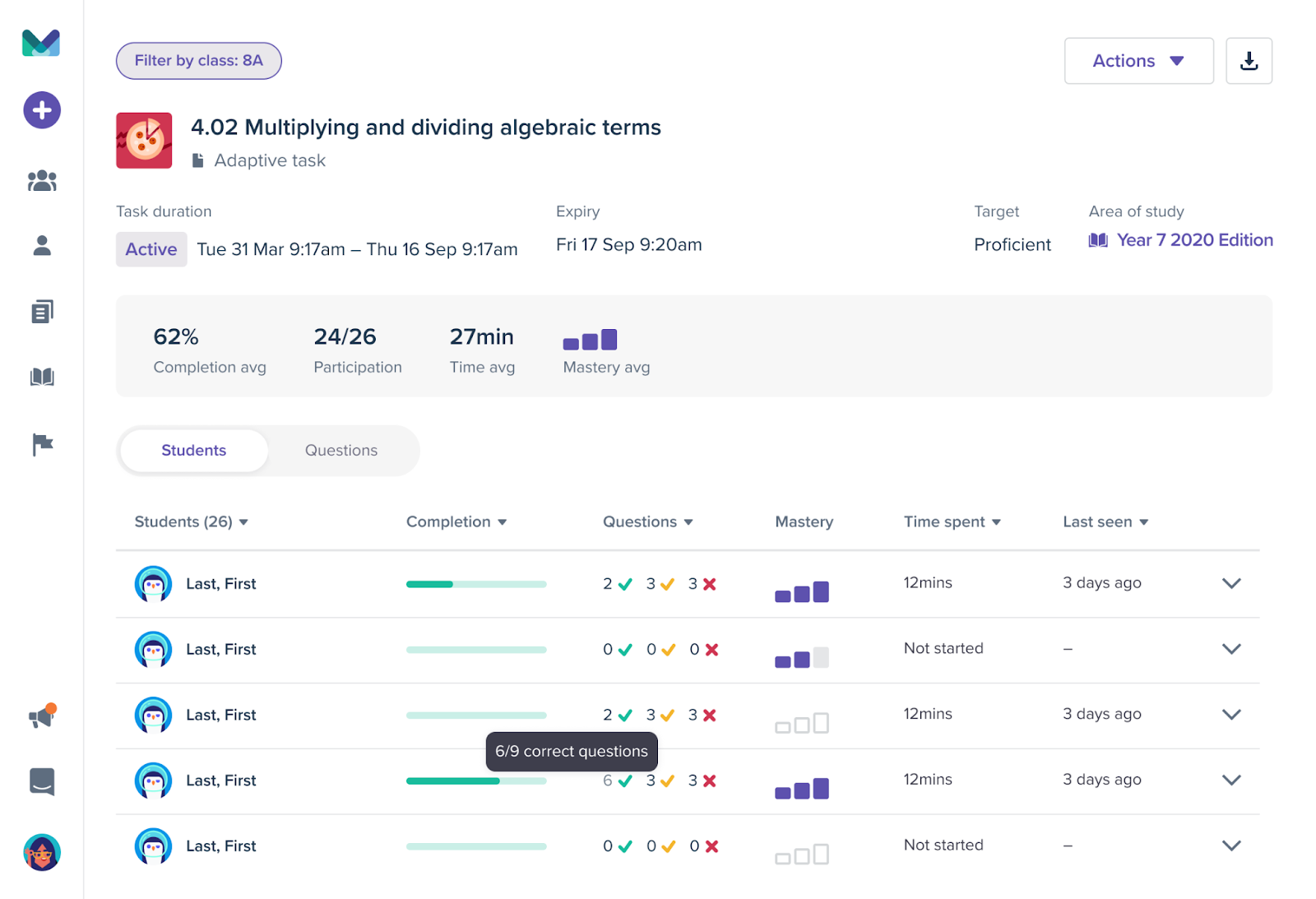
Note: Click here to see how the new adaptive task experience works.
By clicking onto one of the student rows, you can see their scores on every question, and click into the scorecard of each question.
Questions
The Question tab allows you to quickly identify strengths and weaknesses in your class within the task by comparing questions completed during the task. You can sort by the correct/partial/incorrect answers to quickly identify the questions that your students are most struggling with. Note that the orange colour represents partial marks for that question.
By clicking into one of the question rows, you can see each students' score for that question, and click into the scorecard of each question. You can also click on "Try the question" to experience the question as students would.

Grid View
The grid view tab allows you to see your student's current score, whether they received full, partial, or no credit for each question, and how far they are progressing along with the task.
Revision
Every revision question your students were given is listed with its average result and how many students got it correct, partly correct, incorrect or left it incomplete.
