
Students can now see their own topic readiness progress, the same skill proficiency data that appears on the teacher's topic readiness check-in report. This article explains what students see, how to access it and how teachers can use the shared view in their classroom.
Overview
The topic readiness check-in report has always given teachers a detailed view of student progress at the topic level, showing which current topic skills and prerequisite skills each student has mastered. The student view now mirrors this data, so students can independently track their own progress through the same skills their teacher is monitoring.
Note: The student view appears automatically once a teacher has assigned a topic readiness check-in for a topic. There is no additional setup required.
How students access their topic readiness
- Navigate to the relevant textbook and select the topic (e.g. "5. Probability & Statistics").
- Open the Topic Progress page from the topic menu.
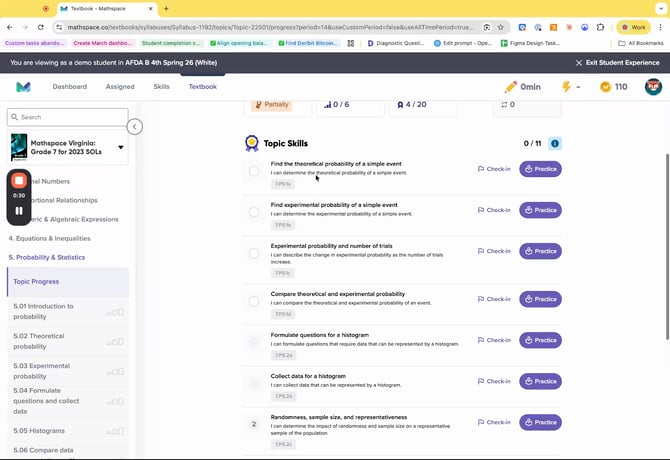
- The page displays a summary at the top showing readiness status, subtopics, skills collected and review questions completed.
What students see
The student topic progress page displays the following information:
Summary bar
At the top of the page, students see an at-a-glance summary with their readiness level, subtopics explored, skills collected out of the total for the topic, and review questions completed.
Topic skills
These are the skills directly related to the current topic. On the teacher's report, these appear as the blue columns. Students see each skill listed with a description, their current proficiency level and options to check in or practise.
Prerequisite skills
These are the foundational skills needed for the current topic. On the teacher's report, these appear as the grey columns. Students see these grouped by proficiency status to help them prioritise their work:
| Group | What it means | What to do |
|---|---|---|
| Gaps | Skills with no proficiency demonstrated yet | Start here - these are the highest priority |
| Needs practice | Skills with partial proficiency | Work on these after filling gaps |
| Proficient | Skills where proficiency has been demonstrated | No action needed - well done |
View options
Students can switch between a visual overview (showing proficiency as icons) and a list view that includes more detail on each skill, such as a description of what the skill covers.
How the teacher and student views compare
The student view shows the same underlying data as the teacher's topic readiness check-in report. The key difference is presentation: the teacher sees a class-wide table with all students listed, while each student sees only their own data in a student-friendly format.
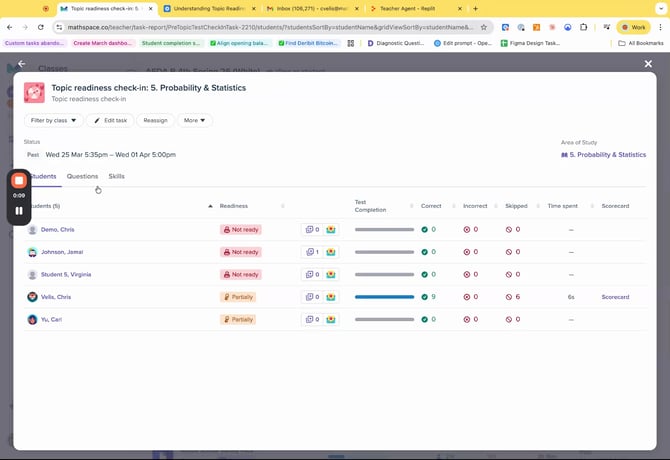
Tip: Because both views draw from the same data, teachers can confidently refer students to their topic progress page when setting targets or discussing next steps. Students will see exactly what the teacher is referring to.
Suggested ways to use this in your classroom
Set a baseline at the start of a topic. Assign the topic readiness check-in when you begin a new topic. Students complete the check-in and can immediately see their starting position, which prerequisite skills they've already mastered and which need work.
Set skill targets. Ask students to fill all their prerequisite skill gaps by a specific date. Both you and your students can track progress towards this goal independently, you on the class report, and each student on their own topic progress page.
Use it for self-directed revision. Students can use the topic progress page to prioritise their own practice, working through gaps first, then needs practice skills, without needing to ask the teacher what to focus on.
For more information, check out our blog post about this update.
Frequently asked questions
No. Once you assign a topic readiness check-in, your students will see their topic progress page automatically.
No. Each student only sees their own skill proficiency data. The class-wide view is only available to the teacher.
Yes. As students complete check-ins and practise, their proficiency data updates on both the student and teacher views.
Students can still see the topic progress page, but their proficiency data will reflect only the work they've completed so far.