
You can click on any cell in the Curriculum report or Topic Readiness report to see the specific questions a student completed and how they affected their mastery.
Viewing question detail in the Curriculum report
- Go to Reports and open your Curriculum report.
- Set the date range filter to the period you want to review.
- Click on any cell in the report grid. A detail panel will open.
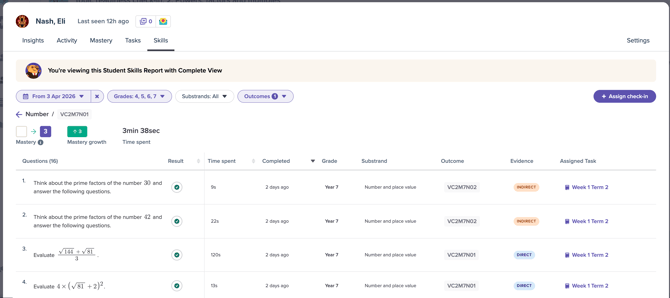
- The panel shows each question the student completed within your selected date range.
The detail panel includes: the question text, the student’s response, whether they answered correctly, and the mastery movement that resulted (e.g. No Mastery → Familiar).
The detail view is pre-filtered to your selected date range. Only questions from that period appear.
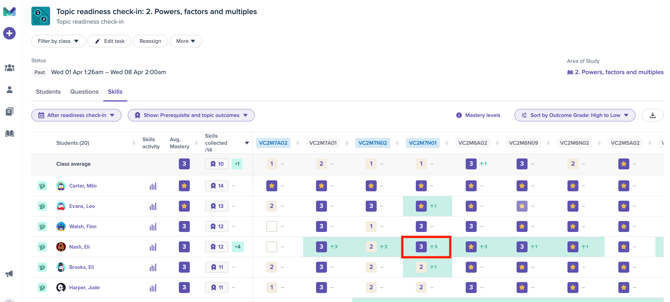
Clicking on the cell highlighted above, takes you through to the view below with the questions that make up this mastery score.
Viewing question detail in the Topic Readiness report
The same click-to-expand behaviour works in the Topic Readiness check-in report. Click any cell to see the questions behind that student’s mastery level for a specific skill or prerequisite.
Exporting report data as a CSV
Both the Curriculum report and Topic Readiness report support CSV exports with before-and-after mastery data.
- Set your date range filter.
- Click Export to CSV.
- The downloaded file includes a column for each outcome, before and after mastery levels, and mastery levels as numeric values (so you can sort in Excel without converting labels manually).
The export matches what you see on screen — the same date range filter applies.
Things to note
- The detail panel only shows questions that contributed to a mastery change within your filtered date range.